Allocation connects each existing ticket or guest record to a real seat. Complete it after the layout is saved and repeat the audit whenever orders or guest details change.
Assign from the visual builder
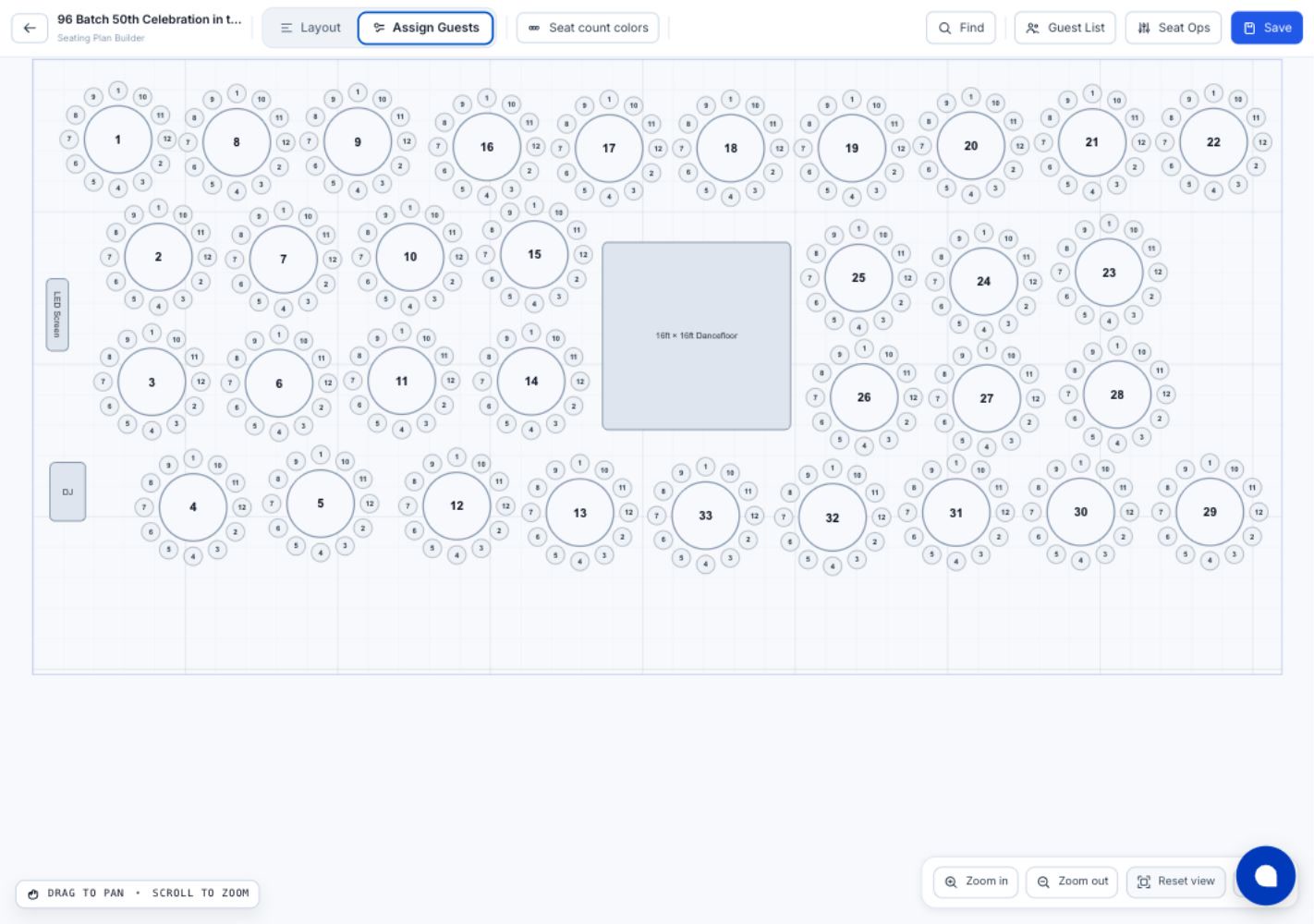
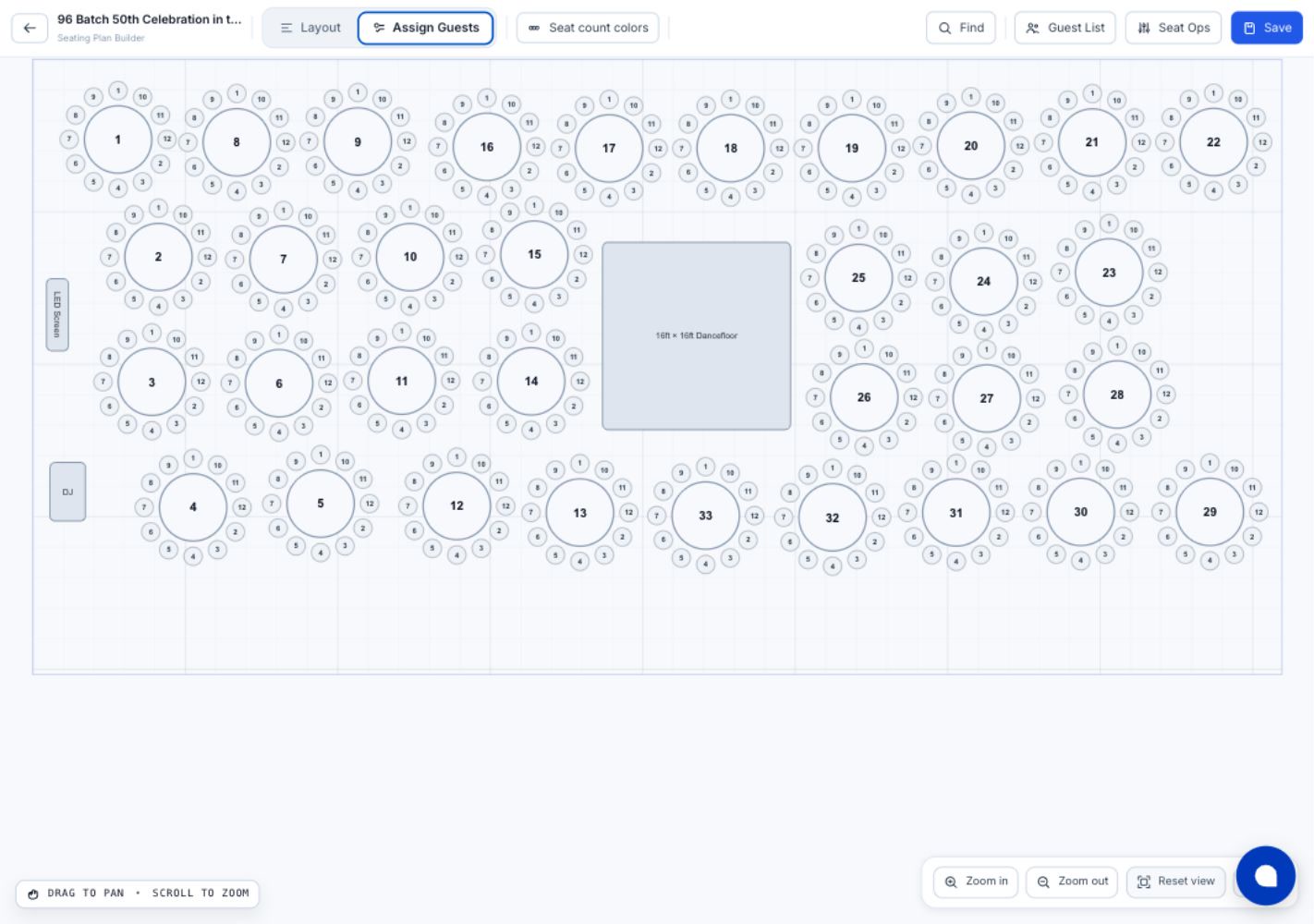
- Open the seating builder and switch to Assign Guests.
- Select a table, then select an available seat.
- Search Assign from existing guests and choose the correct person.
- Continue through the remaining seats; the builder advances to the next assignable seat.
- Choose Save when the allocation block is complete.
Create a manual guest when necessary
For a comp, offline sale, or late addition, select a seat and use Create and assign manually. Enter the guest name and, where available, party, email, and compatible ticket type. This creates the guest ticket and connects it to the selected seat.
Use reservations correctly
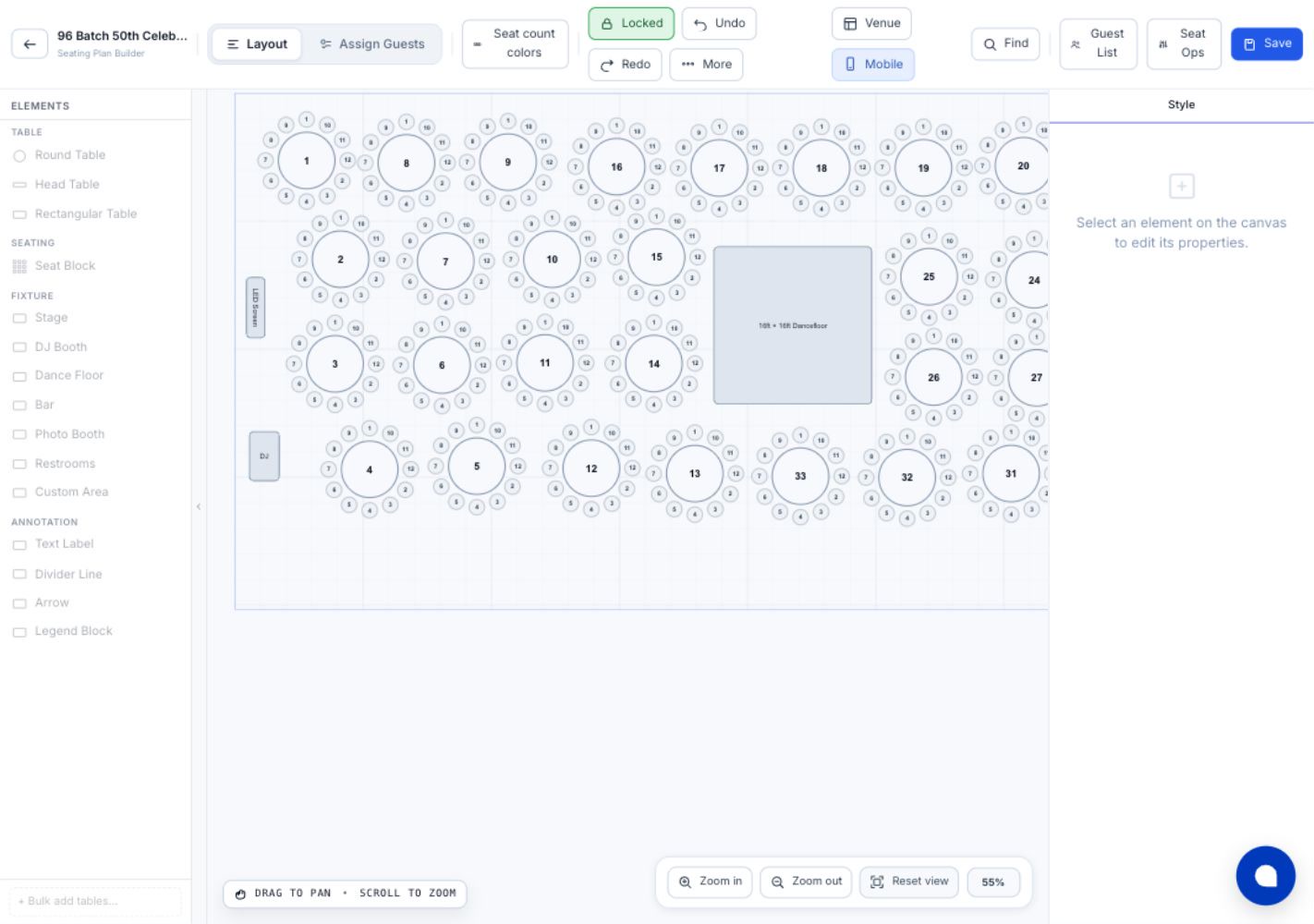
A reservation holds a table or seat for a named party; it is not the same as assigning an individual ticket. Reserve first when names are not final, then replace reservations with named allocations when the guest list is confirmed.
Move and swap allocations
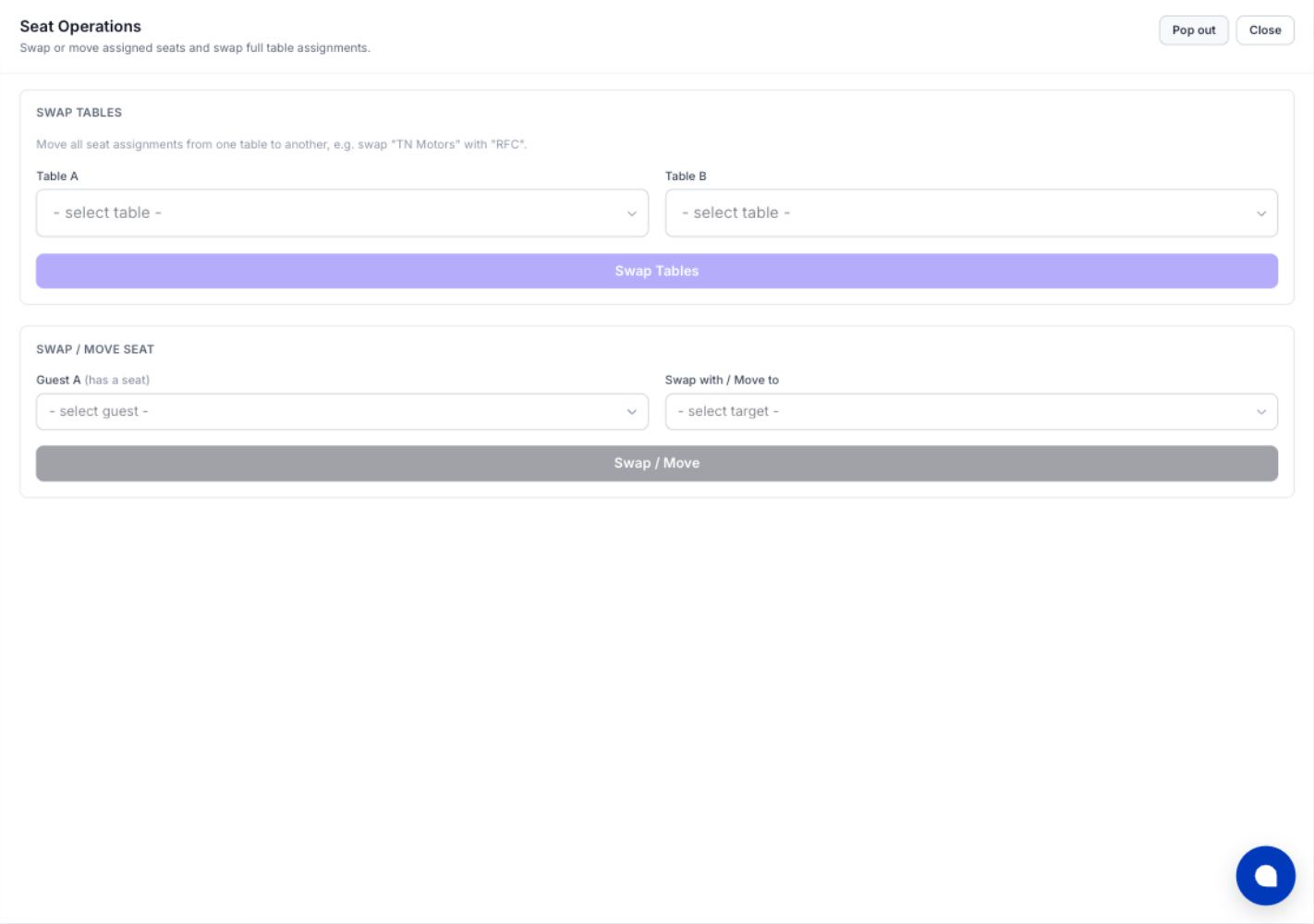
Open Seat Ops to move a guest to an available seat, swap two assigned guests, or swap the assignments of two whole tables. Use these operations instead of clearing and rebuilding large parts of the plan.
Audit the guest list
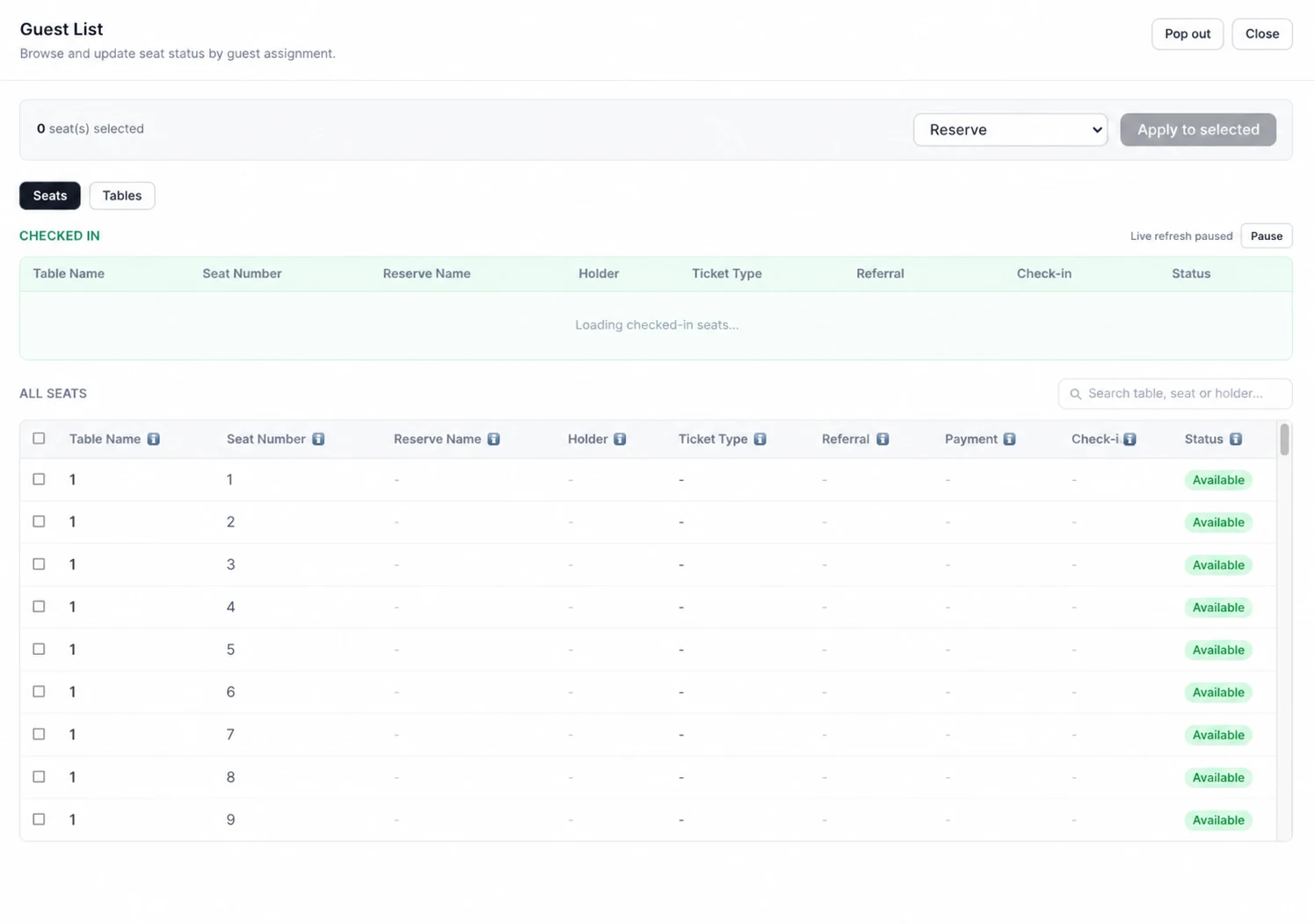
Open Guest List and review seats and tables. Search for missing holder names, unassigned tickets, incompatible ticket types, duplicated assignments, and capacity mismatches. For a multi-seat ticket, make sure every represented seat is allocated as intended.
Checkpoint
Every guest who requires a seat has exactly one allocation, reserved seats are intentional, and table totals match the operational list.