A final end-to-end test catches configuration errors that are invisible when each event section is reviewed separately. Test as a guest first, then as event staff.
Run a guest journey on mobile
- Open the public event preview and confirm the poster, details, venue, and visible navigation.
- Open the ticket page and add each ticket type in a realistic combination.
- Enter buyer and per-ticket guest details.
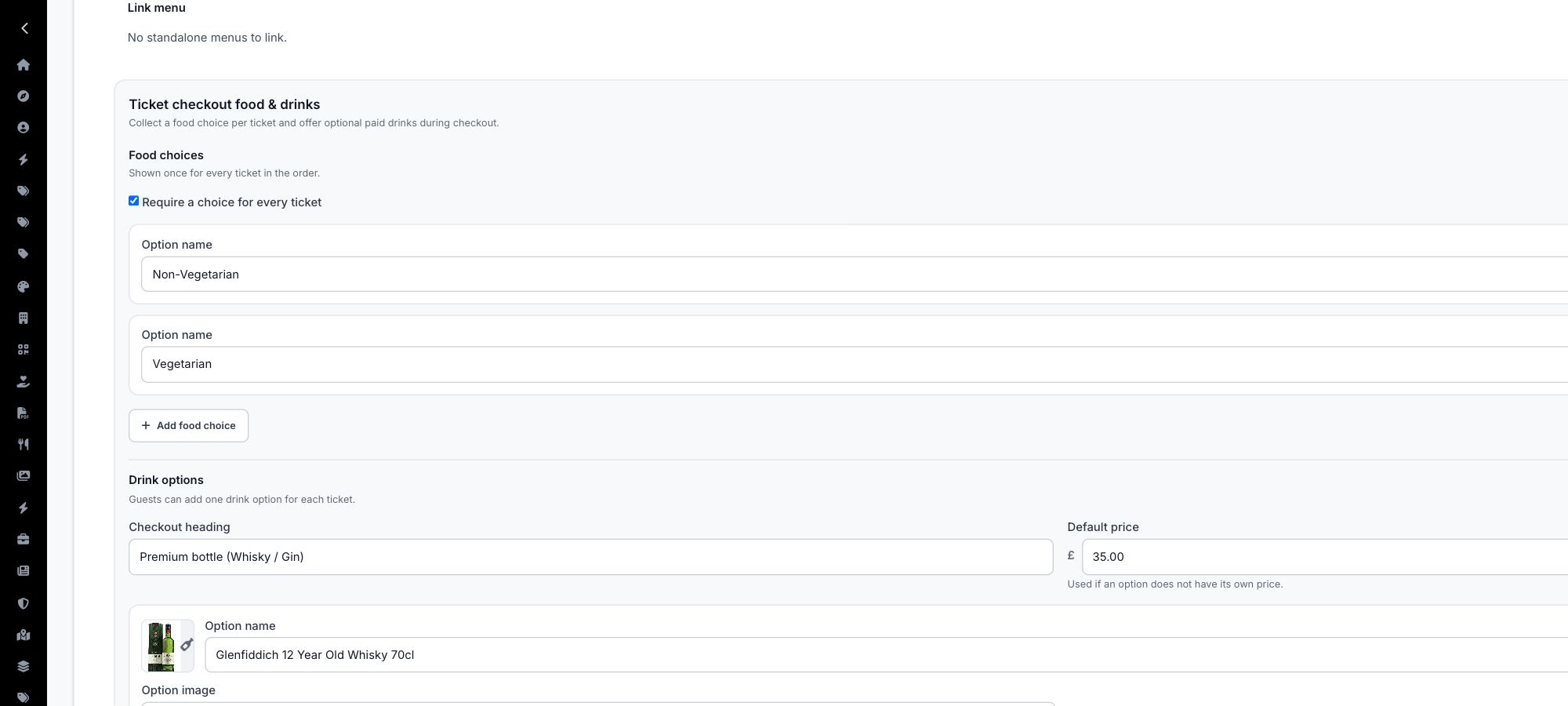
- Select every required food choice and test optional paid drinks.
- For seated events, choose or verify compatible seats.
- Continue to checkout and confirm totals, fees, payment method, and confirmation wording.
Review organiser readiness
- Stripe connection and payout status are ready.
- Ticket prices, capacities, and sales windows are correct.
- Menu options match the caterer's final list.
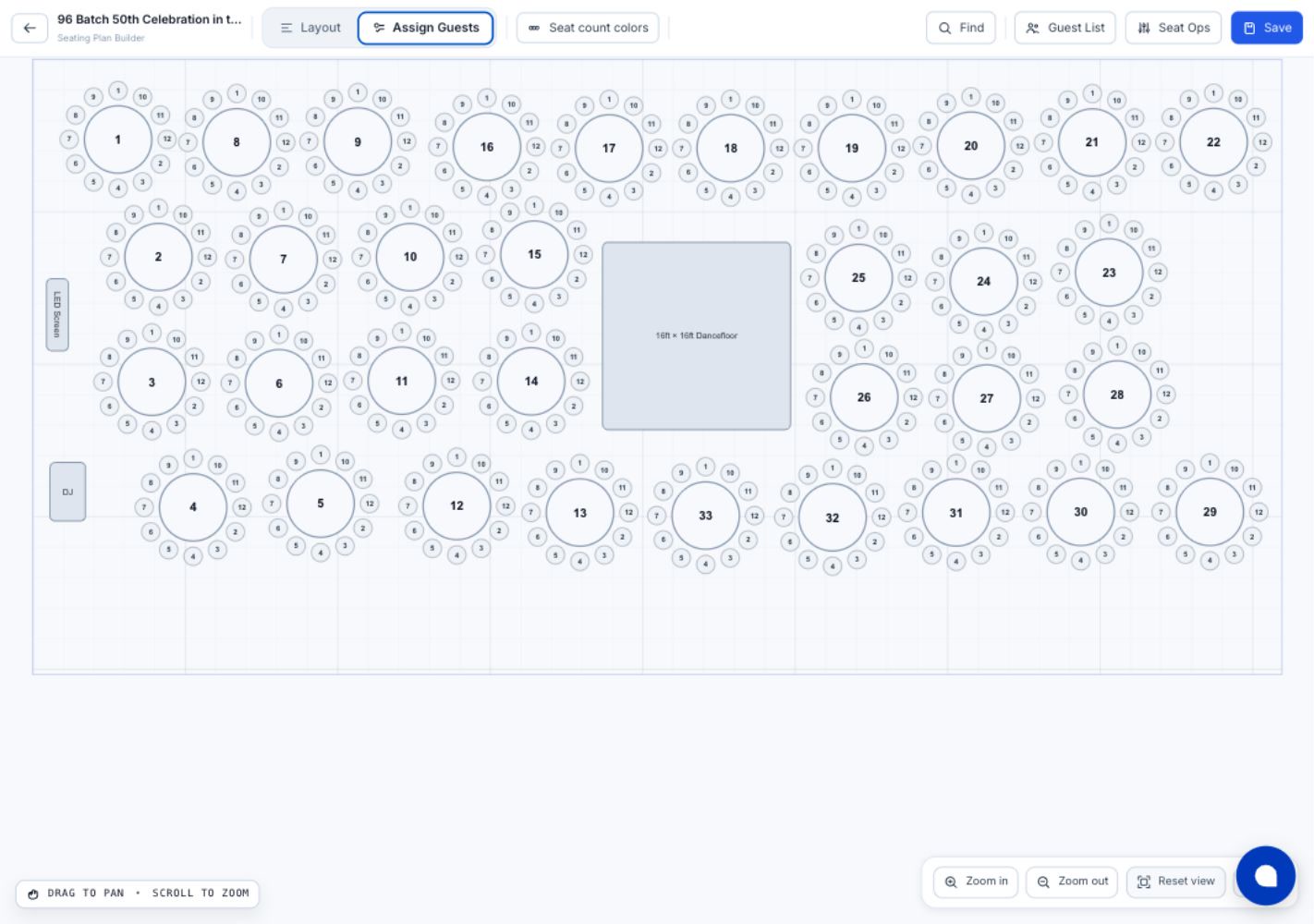
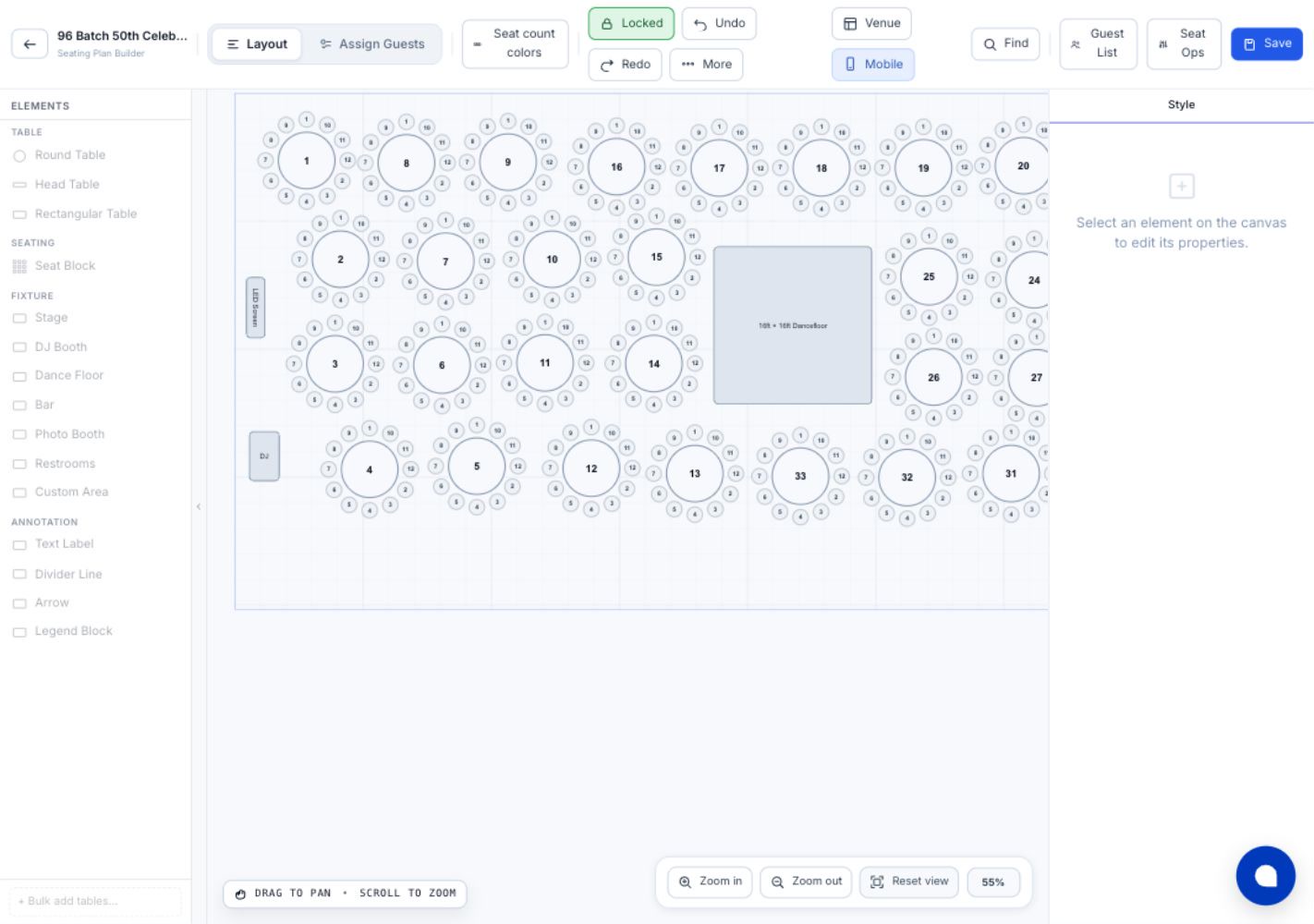
- The seating plan is saved and guest allocations have been audited.
- Staff access links are current and limited to the right people.
- Check-in devices and the event QR code open the intended pages.
Publish deliberately
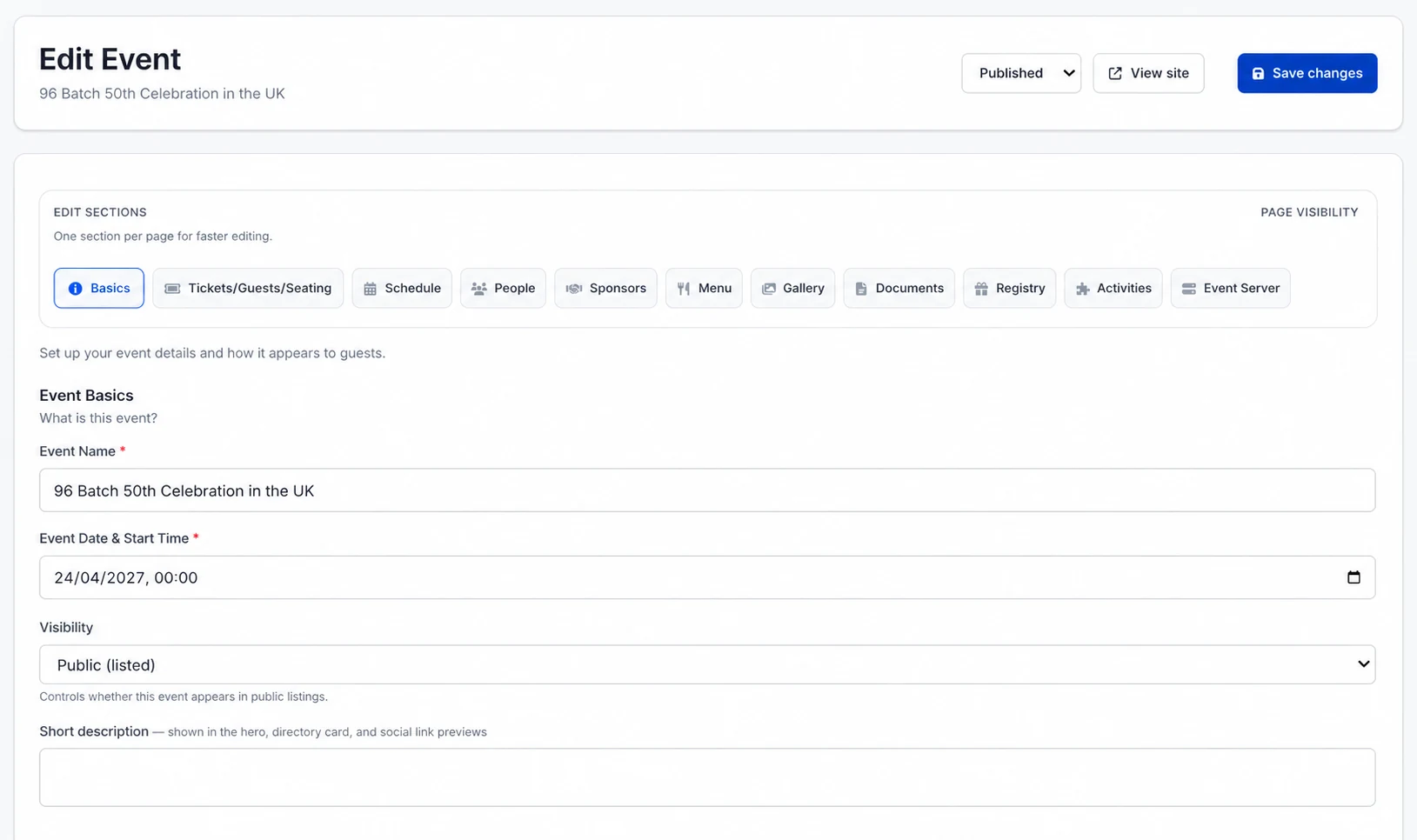
In the event editor, change the event status from Draft to Published and save. Reopen the public URL in a private browser window so you see the same access state as a real guest.
After launch
Monitor orders, payment exceptions, unallocated seats, guest changes, and menu totals. If the layout changes, use Seat Ops to move or swap assignments and repeat the allocation audit. Avoid changing ticket capacity without checking the seating plan first.
Final checkpoint
The event is ready when a real mobile user can move from poster or QR code to event information, ticket selection, menu choices, seat allocation, payment, and confirmation without organiser assistance.