Poster import is the quickest way to create a ShareLynk event draft. It saves retyping, but every extracted value still needs organiser review.
Prepare the poster
- Use a clear JPG, PNG, or WebP image.
- Make the event name, date, time, and venue readable.
- Prefer the original digital file over a compressed screenshot.
- Keep the file under the upload limit shown on the form.
Import it
- Open Dashboard → Events → Create event.
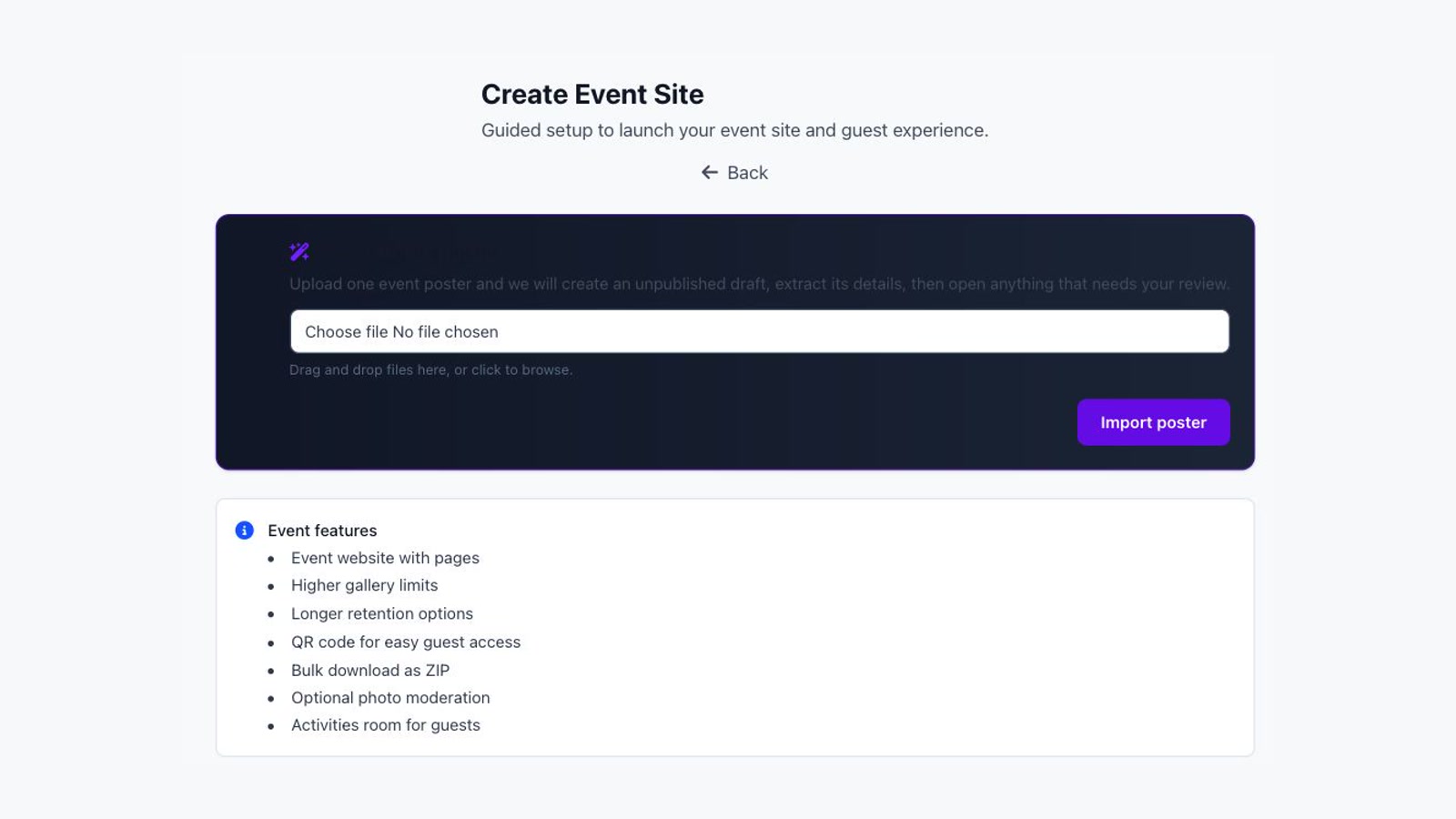
- Find Create from a poster.
- Select the poster and choose Import poster.
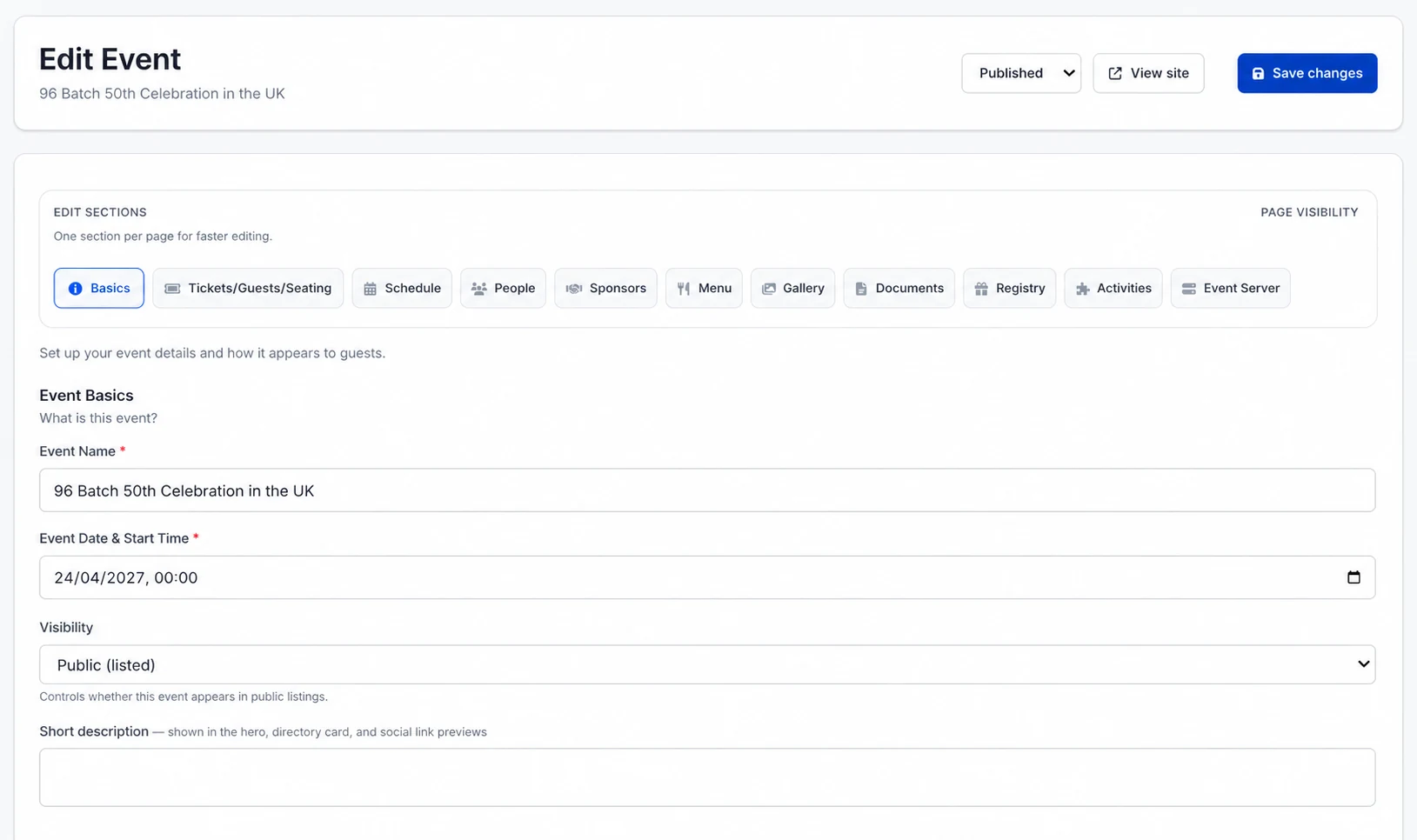
- Wait for ShareLynk to open the new event's Basics section.
The new event starts as an unpublished draft. The poster becomes the event flyer, and background processing extracts possible event details. If extraction is still running, allow it to finish before correcting the fields.
Review the extracted draft
Compare the form directly with the poster. Check the name, date, start time, venue name, address, description, and any category information. OCR can misread stylised fonts, abbreviated dates, and small-print venue information.
When not to use poster import
Use the manual creation form when the poster is not final, contains several dates, omits the full address, or promotes several events. Manual creation gives you a clean record without having to remove incorrect extracted details.
Checkpoint
Do not publish yet. Continue only when the imported event is clearly marked as a draft, the correct flyer is visible, and the main extracted fields match the source poster.